
Understanding that difference matters because a room designed only for wireless presentation may still leave users relying on their laptop camera and microphone when a video call begins.
Wireless presentation and BYOM are often mentioned together when businesses are planning modern meeting rooms. They are related, but they solve different problems.
A wireless presentation system helps someone put content from their laptop or device onto the room display without connecting an HDMI cable.
BYOM - Bring Your Own Meeting, goes further. The user continues to run Microsoft Teams, Zoom, Google Meet or another meeting platform from their own laptop, while using the meeting room's professional camera, microphones and speakers.
KEY TAKEAWAY
Wireless presentation is mainly about putting content on the room display. BYOM allows a user's own laptop to run the meeting while using the room's professional camera, microphones and speakers.
What is wireless presentation?
Wireless presentation is primarily about sharing content to a display.
Instead of connecting a laptop to the screen using HDMI, USB-C or another display cable, the user shares their screen wirelessly through a compatible presentation system.
Depending on the system, that may happen through:
- a dedicated wireless transmitter or button;
- technologies such as AirPlay, Miracast or Google Cast;
- or a combination of several connection methods.an application installed on the laptop;
- browser-based sharing;
For an internal presentation, brainstorming session or face-to-face meeting, that may be all the room needs.
Someone enters, connects to the room display and shares a presentation, spreadsheet, browser window or other content.
The important point is that wireless presentation does not automatically mean that the laptop can use the room's video-conferencing equipment.
Sharing a PowerPoint to the display and gaining access to the room camera are two different functions.
The aim is to make it easier to understand what type of solution fits the space before deciding which products to buy.
What does BYOM mean?
BYOM stands for Bring Your Own Meeting.
The person entering the room uses their own laptop or compatible device to run the meeting.
They open Microsoft Teams, Zoom, Google Meet or another meeting platform on that device just as they normally would. A BYOM setup then allows that device to make use of the room's professional camera, microphones, speakers and display.
The important point is that the user's own device remains the meeting host.
The difference is that instead of relying on the laptop's built-in webcam, microphone and speakers, a BYOM setup allows that laptop to use the meeting-room camera, microphones and speakers.
The laptop remains the meeting host.
The room provides the professional audio and video.
That makes BYOM particularly useful in shared meeting spaces where different people, organisations or guests may use different conferencing platforms.
BYOM does not necessarily mean wireless
This distinction is easy to miss.
BYOM describes who runs the meeting and which device is hosting it. It does not prescribe how that device connects to the room.
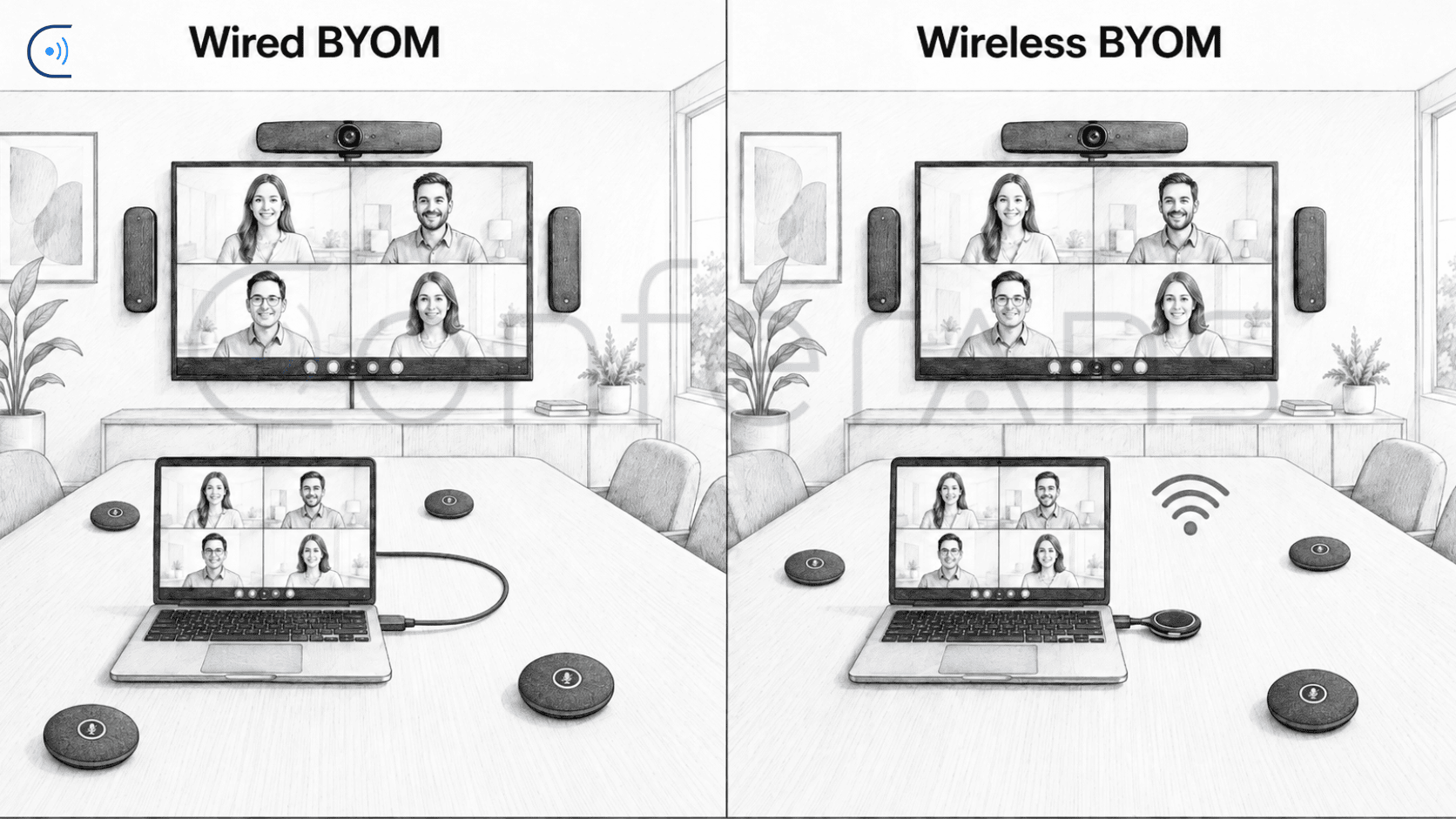
A BYOM connection can be wired.
For example, a laptop may connect physically to the room system and gain access to the professional camera, microphones, speakers and display.
BYOM can also use a wireless connection.
In a wireless BYOM room, the user's laptop or compatible device still runs the meeting, while a compatible wireless collaboration system provides the connection between that device and the room equipment.
Depending on the system, the wireless workflow may use a small transmitter or dongle connected to the user's device, or another supported wireless connection method.
In both wired and wireless BYOM, the user's own device remains involved in joining and controlling the meeting. The difference is how that device connects to the room.
THE SIMPLE DIFFERENCE
Wireless presentation: How do I put content from my device onto the room display?
BYOM: How do I run the meeting from my own device while using the room's professional camera, microphones, speakers and display?
Wireless BYOM: How do I keep my own device in control of the meeting while connecting it to the room equipment wirelessly rather than through a direct room cable?
That distinction is useful when comparing meeting-room products because systems with very similar descriptions can have very different capabilities.
A simple example
Imagine a six-person meeting room with:
- a large display;
- and a laptop on the table.
- speakers;
- room microphones;
- a professional video bar;
With wireless presentation only
The user can share their laptop screen to the room display without an HDMI cable.
For an in-person presentation, that may be perfect.
But if they then join a Teams call, the laptop may still need another connection to access the room camera and audio. Without that connection, the meeting could fall back to the laptop's webcam, microphone and speakers.
With BYOM
The user joins the Teams call from their laptop and selects the room's professional camera, microphones and speakers.
Remote participants now see and hear the meeting through equipment designed for the room rather than through a laptop sitting on the table.
With wireless BYOM
The same principle applies, and the user's laptop or compatible device still runs the meeting.
The difference is that a compatible wireless collaboration system provides the connection between that device and the room equipment instead of relying on a direct room cable.
Depending on the system, that connection may use a small wireless transmitter or dongle connected to the user's device.
This can reduce cabling at the table and make it easier for different users to bring their own meetings into the room.
When is wireless presentation enough?
Not every room needs BYOM.
Wireless presentation alone can make sense when the room is mainly used for:
- face-to-face presentations;
- collaborative sessions where remote participants are uncommon;
- internal content sharing;
- workshops;
In those situations, the main requirement may simply be getting content from a laptop or compatible device onto the room display quickly and cleanly.
If people are not regularly joining remote meetings from the room, there may be little value in adding a full BYOM workflow purely for the sake of having more functionality.
Buying more functionality than the room actually needs does not automatically make the room better.
When does BYOM become useful?
BYOM becomes more valuable when the person entering the room needs flexibility over which meeting platform they use.
That can include organisations where:
- some clients use Microsoft Teams and others use Zoom;
- or users frequently move between different meeting spaces.
- users want meetings to remain controlled from their own laptops or compatible devices;
- rooms are shared between several teams;
- employees prefer working from their own laptops;
- external guests regularly host meetings;
Instead of learning a different room interface, the user works from the device and conferencing application they already know.
The room effectively becomes an extension of their laptop.
Choosing between wireless presentation and BYOM
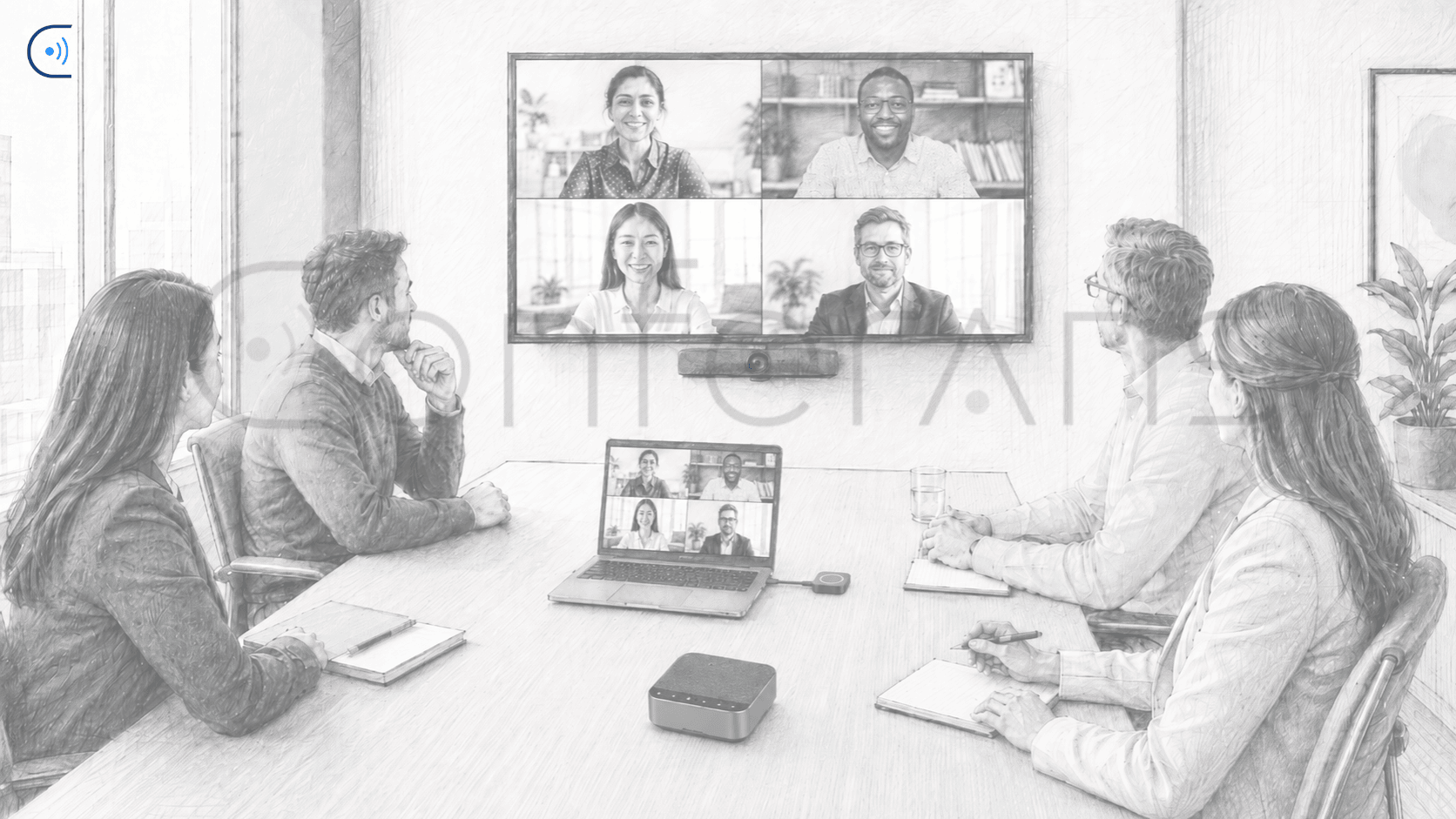
The right choice depends on what people actually need to do in the room. If the main requirement is simply sharing content onto a display, wireless presentation may be enough. If users regularly need to join meetings from their own laptops while using the room's professional camera, microphones and speakers, BYOM becomes much more valuable.
Room size, seating layout and microphone coverage also influence the right setup. If you are still planning the room itself, use our Meeting Room Size Guide to narrow down the most practical starting point.
Already decided that BYOM is the right approach? Our guide to choosing a BYOM setup explains what to consider around connection method, room equipment, meeting platforms, guest use and fallback options.
BEFORE YOU CHOOSE
Before choosing between wireless presentation and BYOM, start with four questions:
- Do people only need to share content, or do they also need to join video meetings from their own devices?**
- Will the user's own laptop or compatible device run the meeting?
- Does that device need to use the room's professional camera, microphones and speakers?
- If BYOM is required, should the device connect to the room through a cable, wirelessly or have access to both options?
Once those answers are clear, the right meeting-room workflow becomes considerably easier to define.
Smarter meeting rooms. Clearer conversations.
Not sure which connection method fits your room?
Tell us how the room is used, which meeting platforms matter and what equipment is already installed. We can help narrow down whether wireless presentation, wired or wireless BYOM, or a combination makes the most sense.